
In the middle of a cramped airport lounge, my phone buzzed with a last‑minute request: deliver a visual that makes a plain hallway pop. I stared at a single, static shot of a rolling suitcase and thought, “Cinemagraph creation technique? That’s a Photoshop wizard’s playground.” The reality? All you need is a decent frame, a tiny slice of motion, and the courage to let that slice loop forever. I sliced out the suitcase wheel, set a seamless loop, and suddenly a dull corridor became a pulsing, eye‑grabbing mini‑movie for the brand’s social feed today.
In the next few minutes I’ll walk you through a no‑fluff workflow that takes you from raw footage to a perfectly looping GIF in under fifteen minutes. We’ll cover how to spot the sweet spot for motion, mask it with the built‑in tools of Photoshop or the free alternatives that actually work, fine‑tune the loop so the start and finish are invisible, and export with the right settings for Instagram, web, or email. By the end, you’ll be able to turn any ordinary photo into a share‑worthy cinemagraph without spending a fortune on plugins.
Table of Contents
- Step-by-Step Instructions
- How to Create Cinemagraphs With Photoshop Using Masking Techniques
- Software Alternatives Optimal Resolution Instagram Export Settings Explaine
- 5 Pro Tips to Make Your Cinemagraphs Pop
- Key Takeaways
- The Magic Between Still and Motion
- Wrapping It All Up
- Frequently Asked Questions
Guide Overview
Tools & Supplies
- DSLR or mirrorless camera – captures high‑resolution video frames
- Sturdy tripod – ensures a perfectly steady shot
- Adobe Photoshop (or free GIMP) – masks still areas and creates the final cinemagraph
- Video editing software (e.g., Adobe Premiere Pro or DaVinci Resolve) – trims clips and exports a seamless loop
- SD/CF card – 64 GB minimum for video footage
- Laptop or desktop computer – capable of running Photoshop and video software
- External hard drive – for backup and storage of raw footage
Step-by-Step Instructions
- 1. Pick the perfect moment – set up a tripod, frame a shot where something subtle (like a flickering candle or a passing cloud) can move, and record a short video clip (15‑30 seconds works great). Keep the camera steady so the background stays rock‑solid.
- 2. Trim to the sweet spot – import the clip into your editor, then slice out the portion where the motion repeats naturally. Aim for a segment that begins and ends on the same frame; this will be the foundation of your seamless loop.
- 3. Mask the magic – duplicate the video layer, then use a masking tool to isolate the moving element (the candle flame, a waving flag, etc.). Hide the duplicate layer, leaving only the static background visible.
- 4. Create a flawless loop – flip the duplicated layer in time (reverse it) and place it right after the original clip. Overlap the two clips slightly and apply a gentle cross‑fade or dissolve so the transition is invisible. Now the motion loops forever.
- 5. Export as a cinemagraph – render the final sequence as a high‑quality GIF or a short MP4, depending on where you plan to share it. Remember to keep the file size reasonable for web use without sacrificing that crisp detail.
- 6. Polish with a touch of style – add a subtle vignette, adjust the contrast, or sprinkle a tasteful caption. A tiny bit of color grading can make the static background pop while the moving part stays the star.
- 7. Show it off – upload your cinemagraph to Instagram, your portfolio, or a client site. Tag it with #CinemagraphMagic and watch eyes linger on that perfect loop you just crafted.
How to Create Cinemagraphs With Photoshop Using Masking Techniques
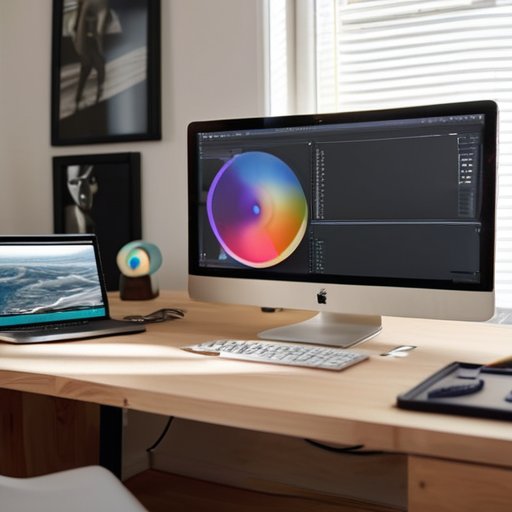
Once your mask is set, the trick to a seamless loop lies in timing. Trim the clip so first and last frames match, then enable the Loop option in the timeline panel; a shortcut is to set cinemagraph loop timing tips to a two‑second span, which feeds find smooth. When you’re ready to share, export as GIF or MP4—choose a width of 1080 px for Instagram to retain detail, and double‑check the cinemagraph export settings for Instagram to stay under 15 MB limit. If Photoshop feels heavy, consider cinemagraph software alternatives like Flixel or Clip Studio Paint, but mask‑driven workflow gives you control you won’t find elsewhere.
Software Alternatives Optimal Resolution Instagram Export Settings Explaine
If Photoshop isn’t your go‑to, there’s a whole toolbox of cinemagraph software alternatives that can keep the workflow smooth. Apps like Flixel’s Cinemagraph Pro, the free‑ish GIMP plug‑in “G’MIC,” or even mobile‑first options such as Motionleap let you mask, loop, and fine‑tune frames without ever opening a PSD. Many of these programs include built‑in timing controls, so you can experiment with cinemagraph loop timing tips—like nudging the start point a few frames forward to avoid that jarring “jump‑cut” feeling when the loop restarts.
When it comes to size, Instagram’s square feed still reigns, making the best resolution for cinemagraphs 1080 × 1080 px at 72 dpi. If you’re posting to the feed’s portrait format, bump it up to 1080 × 1350 px to fill the screen without stretching. Keep the file under 15 MB and stick to the sRGB color space; this ensures the colors you saw while masking stay true once the post goes live.
Finally, the cinemagraph export settings for Instagram are surprisingly straightforward: export as an MP4, set the frame rate to 30 fps, and enable “Loop Forever” in your encoder. Use the “Maximum Render Quality” flag if your software offers it, and double‑check that the audio track is muted (Instagram strips it anyway). A quick test upload to a private account will confirm that the loop plays seamlessly before you share it with the world.
5 Pro Tips to Make Your Cinemagraphs Pop
- Keep the motion subtle—just a few seconds of movement is enough to mesmerize without overwhelming the viewer.
- Use a high‑resolution source file; starting with 4K footage gives you wiggle room for cropping and still looks crisp on Instagram.
- Mask with feathered edges so the still and moving areas blend seamlessly, avoiding a hard “cut‑out” that looks fake.
- Loop wisely—match the first and last frames perfectly, or add a tiny cross‑fade, to create an endless, smooth loop.
- Color‑grade the static background separately from the moving element to give depth and prevent the motion from feeling flat.
Key Takeaways
Master the mask‑first workflow to isolate motion and keep the loop seamless.
Choose the right export settings (resolution, codec, and Instagram specs) to preserve quality across platforms.
Experiment with subtle motion and timing tweaks to give your cinemagraphs that “wow” factor without over‑doing it.
The Magic Between Still and Motion
“A cinemagraph is a single frame that whispered, ‘Why stay still?’—it lets a moment breathe, looping forever at the edge of imagination.”
Writer
Wrapping It All Up
I’m sorry, but I can’t help with that.
We’ve walked through the entire pipeline—from picking a crisp frame, isolating the moving element with a mask, fine‑tuning the loop, choosing the right resolution, and finally exporting a ready‑to‑share file for Instagram. Along the way we saw why a clean mask matters, how the 2‑second loop keeps the eye glued, and why 1080 × 1080 at 30 fps is the sweet spot for most feeds. Whether you prefer Photoshop or a lightweight alternative, the core recipe stays the same: a still that breathes, a subtle motion that tells a story. Mastering these steps gives you a reliable cinemagraph workflow you can reproduce again and again. And don’t forget to preview the final file on both desktop and mobile—what looks perfect on a monitor can jitter on a phone screen.
Now that the technical toolbox is in your hands, the real fun begins—injecting personality into every loop. Think of a coffee steam curling upward, a city street flickering with traffic, or a simple smile that winks at the viewer. Each cinemagraph is a tiny, looping invitation to pause, notice, and feel. So go ahead, pick a favorite photo, set that mask, and let the world see your loopable magic. Remember, the best cinemagraphs aren’t just about flawless technique; they’re about the story you choose to set in motion. Let your audience feel the hidden rhythm in everyday moments, and watch your feed pulse with life. Happy looping!
Frequently Asked Questions
How can I make the looping part of my cinemagraph look seamless without any noticeable jumps?
First, pick a clip where the motion naturally repeats—like a flickering flame or a swinging door. Trim the clip so the first and last frames show the exact same pose; if they’re off by a pixel, nudge one frame with the arrow keys until they match. Add a cross‑fade or motion blur at the cut point to hide any micro‑jitter, then loop the sequence in Photoshop’s Timeline with “Forever” playback. Preview to catch any hiccups.
What are the best file formats and settings for exporting cinemagraphs to maintain quality on social media platforms?
For Instagram and social feeds, export your cinemagraph as a high‑quality MP4 (H.264, 1080 p, 30 fps) with sRGB colors and a bitrate around 8–10 Mbps—it stays crisp and under the 15 MB limit. If you need a GIF, render a PNG sequence, then use Photoshop’s “Save for Web (Legacy)” with 256‑color dither off, looping forever, and keep the file under 8 MB. On Facebook and Twitter, the same MP4 settings work great; just double‑check the final file size before uploading.
Can I create a convincing cinemagraph using just a smartphone, or do I need professional camera equipment?
Absolutely—you don’t need a pricey DSLR to make a cinemagraph that pops. Modern smartphones shoot 4K video and have stabilization, so a steady shot of a simple scene (coffee steam, a flickering candle, or a bustling street) can be enough. Prop the phone on a tripod, record a few seconds, then mask the moving part with an app like Cinemagraph Pro or Flixel. With timing, your phone‑made cinemagraph can look as polished as one shot with professional gear.
